

Nissan VI3 Setup Guide: Install Drivers & Recover VCI3
Jul 8th 2026
Nissan VI3 Setup Guide: The Instructions They Forgot to Include
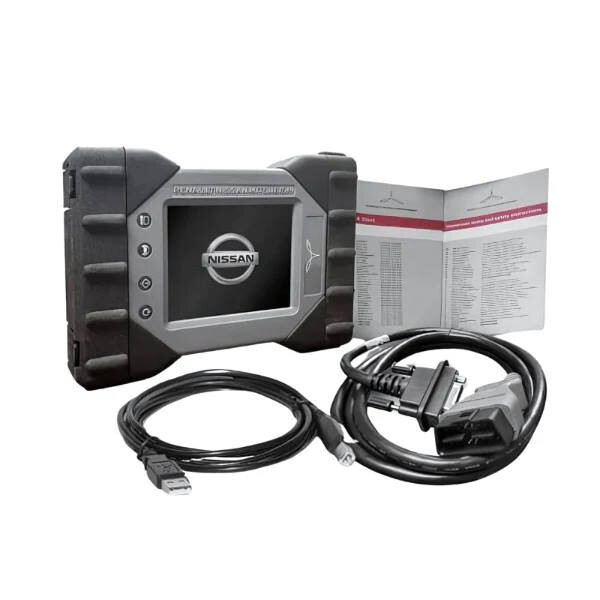
If you just bought a new Nissan VI3 and opened the box to find no driver disc, no setup card, and no instructions of any kind — you're not missing a page. They genuinely don't include one. This Nissan VI3 setup guide walks you through the exact driver install, recovery, and update process so you're not left guessing at the workbench the first time you plug it in.
It's a common enough gap that it catches even experienced techs off guard — you'd expect a tool at this price point to ship with at least a quick-start card. Instead, the entire setup lives on the manufacturer's site, spread across a menu structure that isn't obvious if you don't already know where to look. Once you've done it once, it's a five-minute process. The first time, it's easy to burn half an hour just hunting for the download.
Step 1: Download the VCI3 Drivers
Everything starts at www.kdstools.com. Click Downloads in the top menu, then select Device Drivers from the dropdown. You'll land on a page with several boxes on the left side — find and click Bosch RNM VCI. This downloads a zip file containing everything you need for VCI3 driver installation.
Step 2: Unzip and Install the Software
Head to your Downloads folder and unzip the file — it'll be named something like Kdstools_VCI3-MGR. Once unzipped, you'll have a folder called VCI3 MGR with three subfolders inside:
- FW
- GxE
- HtG
Open each folder and run the .exe file inside — all three, no exceptions. This installs the drivers, firmware tools, and VCI Manager software in one pass. Skipping any one of the three is the most common reason locksmiths get stuck later at the recovery step, so don't assume one install covers all of it. When it finishes, you'll have a desktop icon labeled VCI Manager (RNM).
Step 3: Connect the VI3 and Run Recovery
Plug the VI3 into your computer via USB and launch VCI Manager. The first screen will read "Not Connected to VCI" — that's expected, not a problem. Look at the bottom of the screen for the Recover button. It won't be greyed out. Click it.
This recovery step is where most locksmiths new to the VI3 setup guide process get nervous, because nothing about the screen suggests you should be able to interact with an unconnected device. Trust the process — it's built to work this way. The recovery itself typically runs quickly; if it hangs or errors out, that's usually a sign one of the three installers from Step 2 didn't complete properly rather than a hardware issue.
Step 4: Update and Wait for the Beep
Once recovery finishes, you'll be prompted to run updates. Select Nissan as the brand and let it run. This is the longest part of the process, and how long it takes depends entirely on your internet connection — on a slow connection, this can eat up a real chunk of time.
Don't close the window and don't unplug the VCI3 mid-update. When updates complete, the unit restarts on its own — wait for the beep. That beep is your signal that it's ready for the final step.
Step 5: Connect and Confirm
After the beep, return to the VCI Manager main screen and click Connect. Once connected, the screen displays the unit's serial number — that's your confirmation the VI3 is fully set up and job-ready.
Quick Reference
| Task | Action |
|---|---|
| Get drivers | kdstools.com → Downloads → Device Drivers → Bosch RNM VCI |
| Install | Run the .exe in all three folders: FW, GxE, HtG |
| First connection screen | "Not Connected" is normal — click Recover |
| After recovery | Select Nissan, update, wait for the beep |
| After the beep | Click Connect — serial number confirms you're ready |
FAQ
Q: Why doesn't the Nissan VI3 come with setup instructions?
Kdstools doesn't include a driver disc or setup card in the box. The drivers and VCI Manager software have to be downloaded separately from their site, which trips up a lot of locksmiths setting up their first unit.
Q: What does "Not Connected to VCI" mean on first launch?
It's the normal starting state before recovery has been run — not a sign of a bad connection or defective unit. Click Recover to move forward.
Q: How long does the Nissan VI3 update process take?
It varies by internet speed, sometimes running long enough that it's not something you want to start on a job. Run the full setup at the shop, not in a customer's driveway.
Q: What if the VI3 won't recover or the Recover button is greyed out?
Double check that all three .exe files (FW, GxE, HtG) installed successfully first — a partial install is the most common cause. If it's still stuck, that's a sign to call for support rather than keep clicking around.
Questions? Reach out to our team.